
Send your first SMS campaign
in 5 simple steps
From an empty account to a delivered campaign — contacts, groups, credits, sending and results, in the order you'll actually do it.
Add your contacts (straight into a group)
Open Contacts — put people into a group as you add them, so they're ready for campaigns immediately.
Upload a contact list
- Click + Upload Contact List at the top of the Contacts page.
- Step 1 — Select Group (or create a new one). Everyone in the file goes into that group.
- Choose your CSV or Excel file, then confirm. Large lists import in the background — you can keep working.
Create a single contact
- Click + Create Contact.
- Enter the mobile without the leading 0 (e.g. 7700900123 for UK) and pick the country code.
- Choose a group under Add straight into a group, then save — they're in that audience straight away.
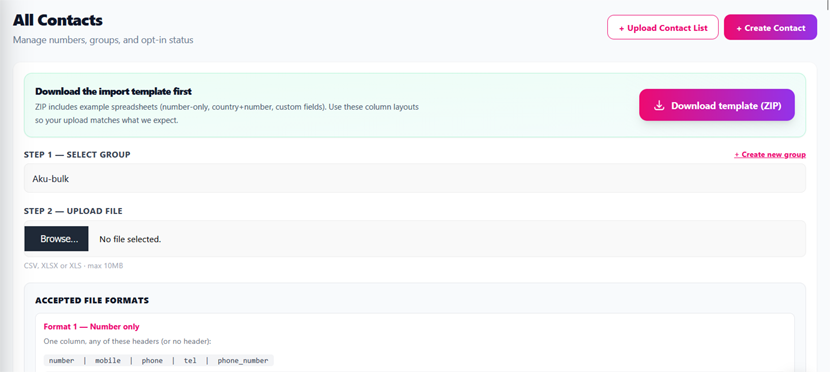
Good to know: duplicates are skipped automatically — re-uploading the same file won't create doubles. Opted-out numbers stay opted out, even if they appear in a new upload.
Create & manage groups
Campaigns are sent to groups — think "All customers", "VIPs", "March promo". A contact can be in many groups.
- Open Groups and click New group to create an audience name.
- When you upload or create contacts, pick that group there — they go straight in. No second step needed.
- Already have contacts without a group? On Contacts, tick them and use the toolbar Assign to group icon.
- Click any group on the Groups page to see exactly who's in it.
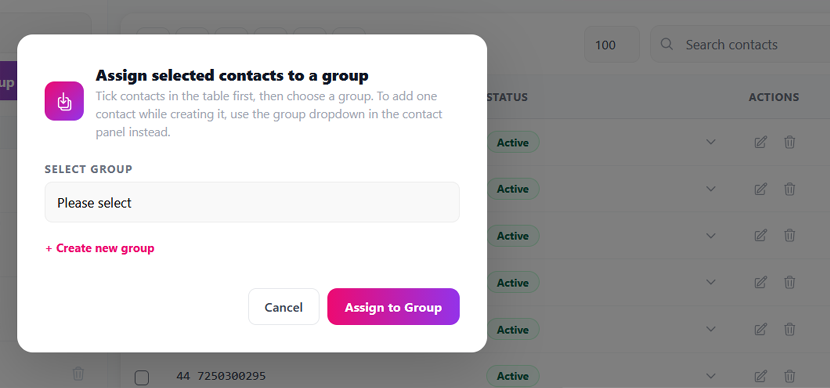
Tip: if the same person is in two groups you pick for one campaign, they only receive the message once — and you're only charged once.
Top up credits
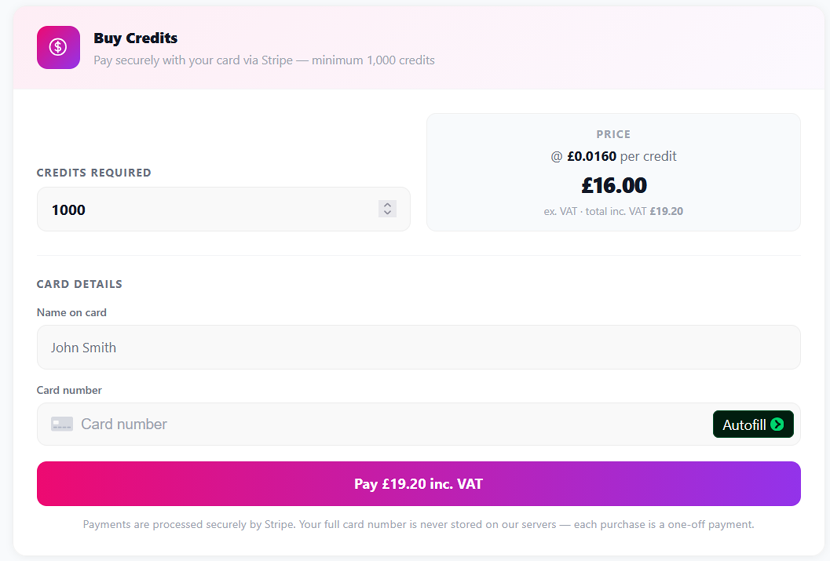
Sending costs 1 credit per SMS, per recipient. Your balance is always visible in the top bar.
Open Credits, choose an amount and pay by card — credits are added instantly, and every payment appears under Invoices.
How message length affects cost
160
characters fit in a single SMS (1 credit)
153
characters per part when longer (2 SMS = up to 306)
0
surprises — the composer shows the exact cost before you send
The opt-out line (e.g. STOP https://notext.uk/xxxxx) counts towards the length — the character counter already includes it.
Good to know: delete a scheduled campaign before it sends and the credits are refunded automatically.
Send a campaign
Open Send SMS — one screen, with a live phone preview showing exactly what recipients will see.
- Select a sender — the name the text appears from on the recipient's phone.
- Tick one or more contact groups — recipient count and credit cost update as you tick.
- Name the campaign — only you see this; it's how you'll find it in reports.
- Write your message — personalise with [number], [company_name] or any custom field from your upload.
- Check the opt-out setting — "Include opt-out" adds the STOP link required for marketing. You can edit the wording; the link is always kept.
- Choose when to send — flip Send immediately, or pick a date and time.
- Press send — the total credit cost is shown right on the button.
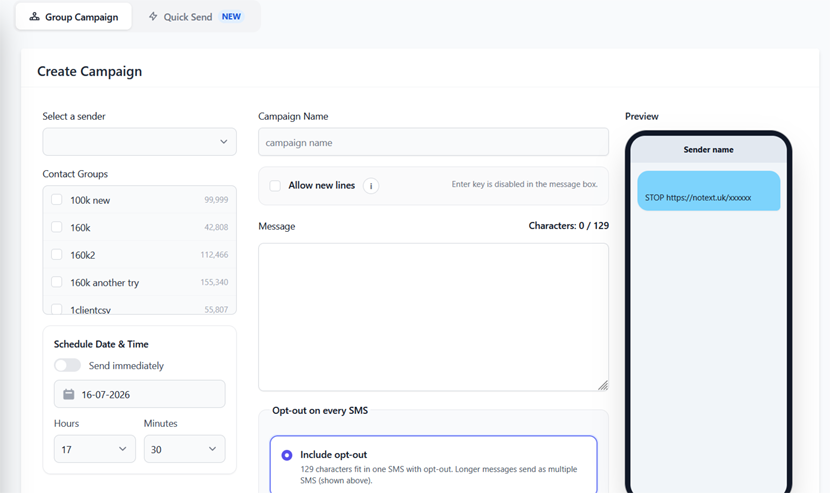
Scheduled campaigns stay editable — open anything pending from the Campaigns page to change it, or cancel it for a full credit refund, right up until it starts sending.
Track results & replies
Open Campaigns for every send and its live status — the report refreshes itself while a campaign is sending.
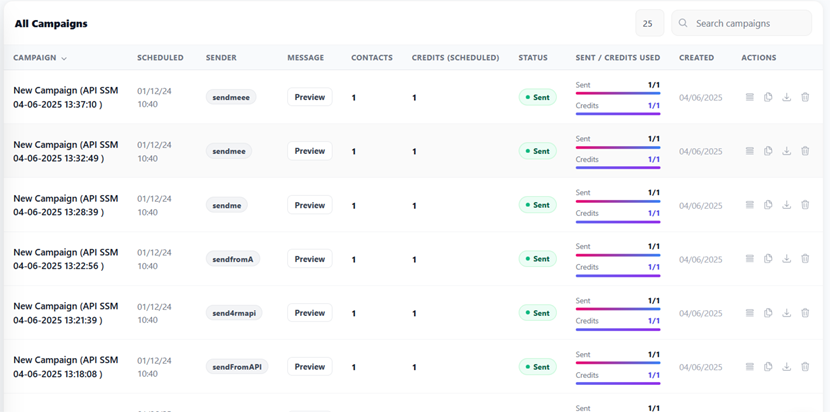
Replies and opt-outs
- Incoming replies appear in the Inbox.
- When someone taps the STOP link they're opted out instantly and excluded from every future send — no action needed from you.
- Export the opt-outs from any campaign report, or view and change opt-out status on each contact.
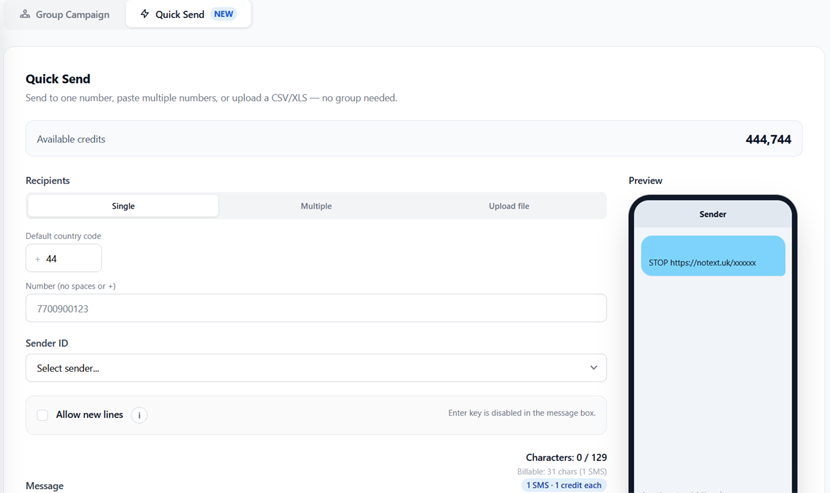
Quick Send
Text a number in seconds — no group needed.
Open Send SMS and switch to the Quick Send tab:
Single number
Type it in and send.
Paste a list
Comma or line-separated numbers.
Upload a file
A quick CSV, no group required.
Numbers you Quick Send to are saved into your contacts automatically, and each send shows on the Campaigns page like any other message.
Common questions
The things every new team asks in the first week.
Why does my message cost 2 credits per person?
Your message (including the opt-out line) is longer than 160 characters, so it's billed as 2 SMS parts. The character counter in the composer shows the limit and the live cost — trim the text to get back to 1 credit.
Can I stop a campaign that's already sending?
Yes — open the campaign and use the pause/stop control. Messages already sent can't be recalled, but the rest stop within seconds, and deleting the campaign refunds the credits for anything unsent.
What number format should my spreadsheet use?
UK mobiles work in any common format — 07700900123, 7700900123 or 447700900123 are all recognised and stored consistently. For other countries include a country_code column.
Do I have to include the opt-out link?
For marketing messages in the UK, yes — recipients must be able to opt out. The platform handles it: the link is added automatically, opt-outs are recorded instantly, and opted-out numbers are excluded from all future sends.
Can several people from my company use the account?
Yes — invite colleagues from your company settings. Everyone shares the same contacts, groups and credit balance, and campaign reports show who sent what.
Stuck on something?
The full help guide has deeper, step-by-step walkthroughs for everything on this page.